


Book Formatting
Once you have written your book and are ready to publish it, it is time to focus on book formatting. Book formatting is deciding what your completed manuscript’s content will look like to your reader, on paper as a printed book or on a digital device as an eBook.
1. Why do you need to think about good book formatting?
- Good Book Formatting promotes readability. A poorly formatted book will distract the reader. You will find the reader is more concerned with how you’ve arranged your content instead of focusing on the content itself.
- Good Formatting gives your content a professional and clean appearance. An attractive and interesting format will increase recommendations and attract positive reviews.
So, book formatting is essential.
Look back on the books you’ve read, and try to remember which book you loved most. Apart from the book’s content, was it because it was easy to read through it? What about the book’s formatting did you like?
2. What is the right software for Book Formatting?
There are many different types of software you can use to format your book. Here are two of the most popular ones in use.
- Adobe InDesign: – This is the most professional and complex software you can choose. It gives you access to different layout features and is wonderful for complex design. Adobe InDesign is especially great when formatting magazines or a picture-heavy book. You can use it to format eBooks into ePub files or PDF files. It also creates great print PDF files. (Adobe InDesign requires a monthly fee for the software. Budgetwise it is on the higher side of cost).
- Microsoft Word: – This is the most accessible and familiar software. It is great for text-heavy content like novels. It allows you to format your page for print or eBook formatting, add headings for your Table of Contents (essential for eBooks) and margins, format your paragraphs, and prepare a print PDF for your printer. Word is very suitable for simpler formatting.
Other types of software you can use for Book Formatting are:
- –Scrivener:- Scrivener is great for writing and organizing drafts, with basic formatting options. It allows you to export your complete manuscript to Word for final book formatting.
- Kindle Create: – Kindle Create is Amazon’s answer to formatting books for sale on the Kindle platform and their printing services. You can create print replica eBooks, reflowable eBooks, or Comic book files for upload into your Kindle Publishing Account.
- Vellum: – This software is only available for Mac users. It is also a paid software. It is great software to create and design neat book interiors for print and eBooks.
3. What are the Standard Sizes for Books in Various Genres like Fiction, Non-Fiction, and Children’s books?
Book sizes vary by region, the printers, and the publisher putting out the book. However, here are common book size dimensions you can use to determine your book’s size.

Fiction Book Sizes:
- – If you want to publish and print your book on Amazon, the Standard Trade Paperback is 5.5” x 8.5” or 6” x 9”. The default print size on Amazon’s KDP is 6” x 9”. While a printer in Kenya may set you up at 5.5” x 8.5” or 5.5 x 7.25”.
- – There is also the Mass Market Paperback size which is: 4.25” x 6.87”
- – A Hardcover book may be sized at 5.5” x 8.5” to 6” x 9”
Fiction Page Count
The page count of a fiction book may be typically between 200 and 400 pages, though this can vary widely depending on the type of book.
Fiction Book Covers
- – Paperback: Soft covers that often have a glossy or matte finish.
- – Hardcover: Sturdy cover, often with a dust jacket.
Non-Fiction Book Sizes
Here are two standard book sizes for Non-Fiction books:
- – A Trade Paperback is sized at 6” x 9” or 7” x 10”
- – A Hardcover Book is sized at 6” x 9” to 7” x 10”
Non-Fiction Book Page Count
Non-fiction book page count is usually between 200 to 500 pages, though some reference books and academic works can be much longer. The page count is also determined by the number of pictures, images, illustrations, and tables the non-fiction book has.
Non-Fiction Book Covers
- – Paperback: Soft covers that often have a glossy or matte finish.
- – Hardcover: Sturdy cover, often with a dust jacket.
Children’s Book Sizes
Children’s book sizes depend on the type of content and paper you use. Other factors that contribute to the book size are the type of font, the size of the font, and the complexity of the artwork.
- –Board Books are sized at 5” x 5” to 7” x 7”
- –Picture Books can be sized at: 8” x 8”, 8.5” x 8.5”, 8” x 10”, 10” x 8”
- – Early Readers/Chapter Books are sized at: 5.25” x 7.75” or 5.5” x 8.25”
Popular Children’s Book Page Count standards:
- – Board Books are typically 12 to 32 pages.
- – Picture Books are typically 24 to 48 pages.
- – Early Readers/Chapter Books are typically 32 to 160 pages.
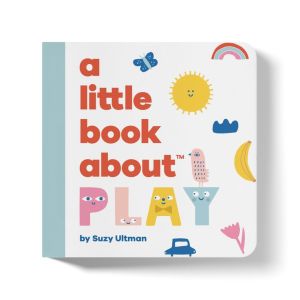
Children’s Book Covers:
- – Board Books: These books have sturdy, thick covers and pages to withstand handling by young children.
- – Picture Books: They have hard covers with glossy pages to enhance illustrations.
- – Early Readers/Chapter Books: The covers vary and may have a paperback cover or hardcover depending on the publisher and target age group.
Book Trim Sizes are determined and vary based on the specific needs of the chosen genre, the preferences of the publisher, and the availability of materials in a region. In Kenya, the printer’s costs and paper availability may add to these decisions.
To remember:
The most common book Trim Sizes are 5” x 8” (A5 book), 6” x 9” (Amazon’s Standard Print size), and 8.5” x 11” (A4 Print Size).
- – As an author looking to print a book, you will determine your book’s trim size depending on the trim size’s impact on your novel’s page count and reader experience.
- – You can also determine the size of your book depending on the genre of your work (e.g., novels vs. textbooks).
4. Margins, Fonts & Typography, Alignment, and Justification.
Margins:

- – The standard margin sizes in book formatting are 1” for the top and bottom margins, and 0.75” for the sides. This is how your word processor will set them for you.
- It is standard but you should choose your book’s trim size before determining your margins. Remember that margins are used to ensure your text will not be cut off during the printing of your book. Your book has three margins: Top, Bottom, and Outer Margin. Then there is the Inside or Gutter Margin.
- – The Gutter Margin, or the Inside Margin is determined by the page count of your book. The more pages your book has the thicker the book becomes. That means the inside margin or the gutter must increase to accommodate the spine of your book. The gutter margin adds extra space on the sides and at the top of your content when your book is bound. This margin keeps your content visible and not caught in the binding.
- – As you format your book, adjust margins for the readability and aesthetics of your content. Also, set your margins to ensure your content is not cut out when you print your book. To learn more about margins refer to ‘How To Set Trim Size, Bleed, and Margins’ by Amazon.
- When setting up your book on a word processor like Microsoft Word for print, you need to set your document to have Mirror Margins. Mirror Margins ensure your document will have facing pages for a double-sided document like a book or magazine. With Mirror Margins, the margins of the left page will be a mirror image of those on the right page. That is, the inside margins are the same width and the outside margins are the same width. This will make life easier for you and the printer as you create the Print PDF. To learn more, check out this tutorial on ‘How To Build Your Book – Format a Paperback Manuscript’ by Amazon.
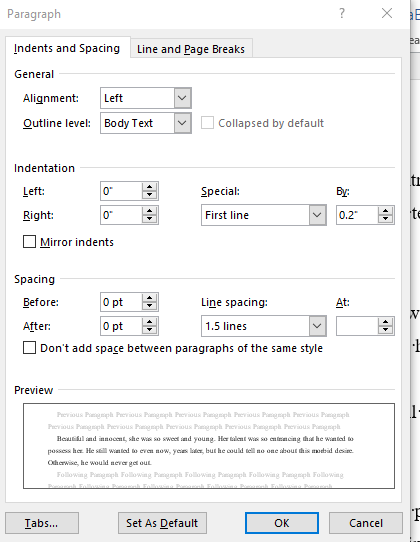
Fonts and Typography:
- – The most recommended book font is Serif font (e.g., Times New Roman, Garamond) for body text.
- – Suggested font sizes: 10-12 pt for body text, larger for headings.
- – Line spacing: 1.15 to 1.5 for comfortable reading.
Alignment and Justification:
- – Left-aligned text is easier to read and avoids awkward spacing.
- – Justified text creates a clean edge but requires hyphenation and careful attention to word spacing.
5. Your Book’s Page Layout and Design
Title Page
- – Your Title Page typically includes the following – Book title, subtitle, author name, and the publisher.
- – Center and space this information for a clean look.
Table of Contents:
- – Create automated tables of contents using word processors like Word.
- – Ensure your headings entries are properly linked and styled consistently, especially in eBooks.

Chapter Headings:
- – Ensure you have consistent font, size, and placement for chapter titles.
- – Be vigilant when using decorative elements like drop caps or small graphics. Make sure they are well formatted.
Headers and Footers:
- – Headers and Footers are used to include page numbers, author name, and book title.
- – The placement options are determined by the author and publisher. However, standard practice is that headers are for title/author, and footers for page numbers.
A Note on Typesetting
Typesetting is the process of arranging and formatting text and images for print. It involves selecting fonts, adjusting spacing, setting the alignment, and ensuring the book layout is visually appealing and readable. Traditionally, typesetting was done manually with metal type, but today it is done digitally using various software programs. Typesetting is still an essential part of the printing process. Here's why:

1. Readability and Aesthetics: - Proper typesetting ensures easy-to-read text and visually appealing. This involves choosing the right font size, line spacing, and alignment.
2. Consistency: - Typesetting helps maintain consistency throughout the document, ensuring that headings, subheadings, and body text follow a uniform style.
3. Layout: - Effective typesetting organizes text and images in a way that guides the reader's eye smoothly across the page. This includes managing widows, orphans, and balancing text blocks.
4. Preparation for Printing: - Typesetting ensures that the digital file is correctly formatted for printing. This includes embedding fonts, setting correct margins, and ensuring proper image resolution.

In a digital printing context, typesetting typically involves using desktop publishing software like Adobe InDesign, Microsoft Word, or Scribus. These tools allow you to control the layout and design of your document precisely, ensuring that it prints correctly and looks professional. Typesetting is a critical step in preparing any document for print, including when using digital printers. It ensures that the final product is readable, aesthetically pleasing, and formatted correctly for the process of printing.
6. What are Text Formatting Details in Book Formatting?
Paragraph Styles:
- – Setting paragraph styles allows you to ensure consistency in text formatting (indents, spacing, font).
- – Learn how to create and apply styles in your preferred word-processing software.
Widows and Orphans:
– A Widow is found at the top or end of a paragraph. It is a single line of text consisting of one or more words. An Orphan is a single word (or syllable) at the bottom of a paragraph of text. Control Widows and Orphans when formatting your book to improve readability. You do this by adjusting your paragraph breaks and the spaces between paragraph lines. Learn more about what Widows and Orphans look like here.
Hyphenation:
- – Hyphenation helps with justified text to avoid large gaps.
- – InDesign offers a great paragraph style feature that allows you to control hyphenation in your paragraphs. This setting helps to avoid awkward breaks.
Images and Graphics:
- – Inserting high-resolution images (300 DPI minimum for print).
- – Positioning images within the text and adding captions.
7. What are other Advanced Formatting Tips?
Inserting Drop Caps:
- – Drop Caps are large initial letters at the start of a chapter or section. You can do this with a text-heavy book to enhance design.
Pull Quotes:
- – Pull quotes highlight key sentences or phrases by enlarging and styling them differently. They are used in non-fiction books. It is rare to find them in fiction books.
- – They are placed within the text to draw the reader’s attention to a key point. They are popular in textbooks.
Section Breaks:
- – Use section breaks to start new chapters on odd-numbered pages.
- – Differentiating between section breaks and page breaks.
8. What are Proofreading and Pre-Print Checks?
The Importance of Proofreading:
- – Proofreading is eliminating typos, grammatical errors, and formatting inconsistencies.
- – You need multiple rounds of proofreading by different people to ensure you have not missed anything.
Consistent Formatting:
- – Ensuring chapter headings, page numbers, and other elements are consistent throughout the book.
- – Using style guides and templates for uniformity.
Generating a Print-Ready PDF:
- – Ensuring all fonts are embedded to prevent substitution issues.
- – Checking image resolution and color settings (CMYK for print). Communicate with your printer to ensure you have the right page layout sizes.
9. Working with a Printer
Printer Specifications:
- – Talk to your printer and make sure you have specific information on how to set up your Print PDF. Understand terms like bleed (extra margin for trimming), gutter (binding space), and CMYK (color model for print). This way you will have professional images in your book, and no text will be cut out in the final proof.
- – I cannot emphasize this enough. Please, overcommunicate with your printers to get specific requirements and guidelines. It will reduce friction and ensure you have a book you are happy with.
Requesting a Proof Copy:
- – Before you sell your book, ask the printer for a sample, an initial proof copy. Read it carefully. Review the physical proof to catch any errors not visible on the screen.
- The proof copy is also used to check binding quality, paper quality, and the overall layout of your content.
10. Resources and Further Reading
Recommended Books:
- – “Book Design Made Simple” by Fiona Raven and Glenna Collett.
- – “The Elements of Typographic Style” by Robert Bringhurst.
Blogs and Tutorials:
– Joanna Penn’s blog (The Creative Penn).
Communities and Forums:
You may be starting your self-publishing journey, or have been here for a while and looking for information. It is important to note that book formatting takes time and loads of practice. The more you do it, the better you get at it, you will find and develop your own particular style. Each book is different and may have different needs and require something different from you. Be creative, but always consider your end product is for the reader. The reader determines if you did a great job.
Most of all, enjoy the moment you finally hold your printed book in your hand and there is nothing to change. Smile wide and tell yourself, ‘I did a good job’. And you have. You did well.
Keep learning and experimenting with different formatting techniques.


Leave a comment